Introduction
Every website owner needs a secure data backup plan. Without one, a single cyberattack could erase everything you’ve built. It’s not just about preventing loss—it’s about preparing to bounce back fast.
Setting up a secure data backup is your first step toward recovery. A smart data backup strategy safeguards your content and keeps your site online. Let’s walk through simple steps that cut downtime and protect your business.
Design a Strong Data Backup Strategy
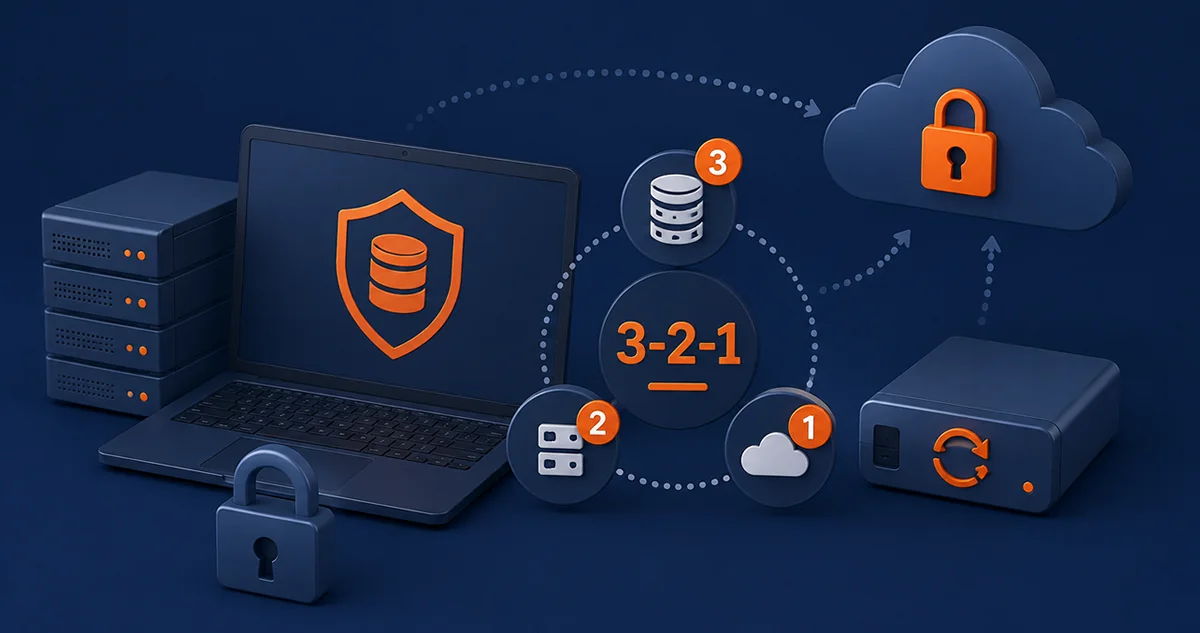
A robust data backup strategy is the first step toward safeguarding your website. It explains what data to back up, how often to back it up, and where to store the backed-up data. This structure enables you to respond quickly to problems.
Many businesses follow the 3-2-1 rule. Keep three copies of your data, stored in two formats, with one off-site. You should also use backup with encryption to protect each copy. These steps create a secure data backup you can rely on.
Having a clear plan ensures your most important files are never missed and also helps you avoid delays when restoring your site. Your site comes back online faster and with less effort.
Start with this strategy and stick to it. Use it as a habit, not just a reaction. In the next section, we’ll focus on WordPress site backup and how it protects your website content in real time.
Automate Your WordPress Site Backup Process
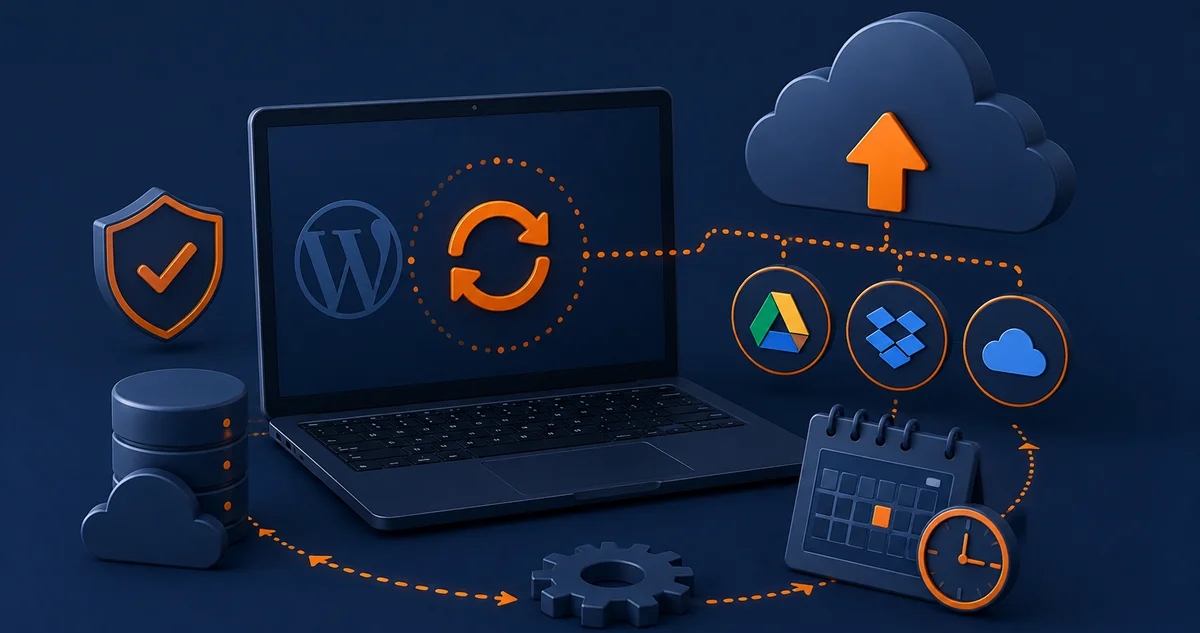
Backing up your WordPress site regularly keeps your content safe. But doing it by hand can be risky. You may forget or make mistakes. Automating the process helps avoid that and keeps your backups running on schedule.
Many website owners use UpdraftPlus, a trusted backup plugin for WordPress. This tool handles WordPress site backup and stores copies in the cloud. It can send your files to Google Drive, Dropbox, or other secure cloud storage services.
Automation adds another layer to your secure data backup system. It works in the background and keeps your site protected every day, even when you’re not actively monitoring it. You get peace of mind without lifting a finger.
Make backups a regular habit by automating the process. It’s easier, faster, and safer. In the next part, we’ll look at how to protect your WordPress database backup—the core of your site’s content, settings, and users.
Secure and Monitor Your WordPress Database Backup
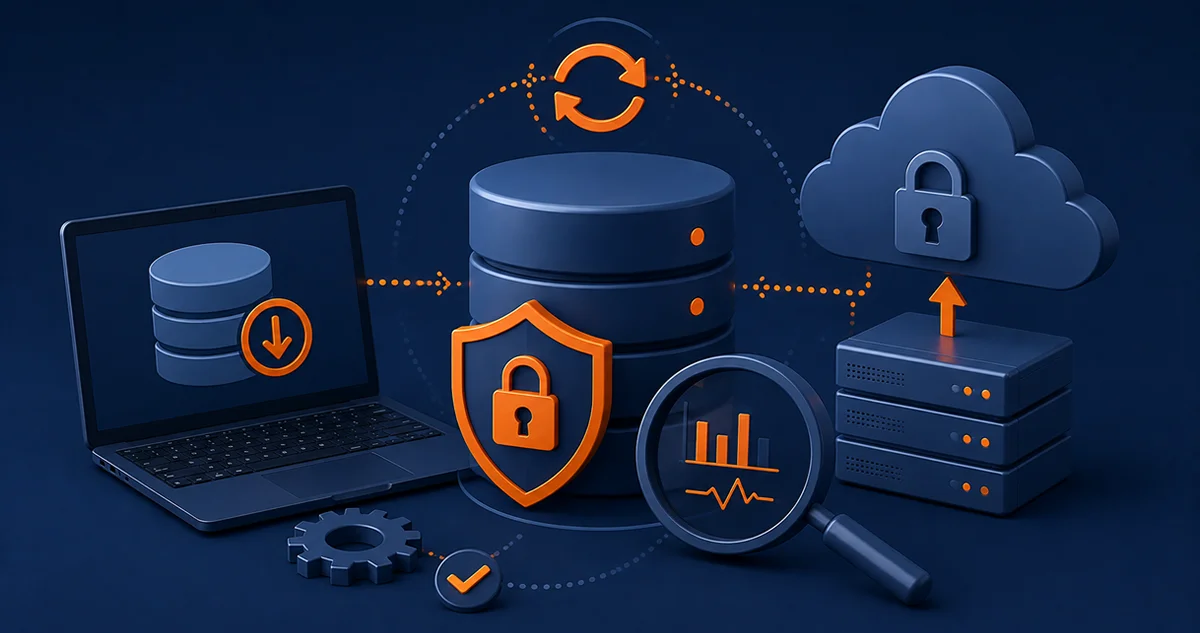
Your database stores all your content: posts, pages, users, and settings. That’s why creating a WordPress database backup is one of the most essential parts of your secure data backup plan. If anything breaks, your database brings it all back.
You can export the database manually using tools like phpMyAdmin. You could also install a backup plugin. Many site owners prefer using a site backup service. It automates the process and stores your backup safely using off site backup methods.
With regular database backups, you don’t just protect your data—you also speed up recovery. You won’t lose days or weeks of work. This is how smart business owners stay online and reduce downtime.
Be proactive. Keep your database backup up to date and securely stored. Next, we’ll show how backups with encryption and off-site storage can further enhance your secure data backup system.
Use Web Backup Services with Strong Encryption
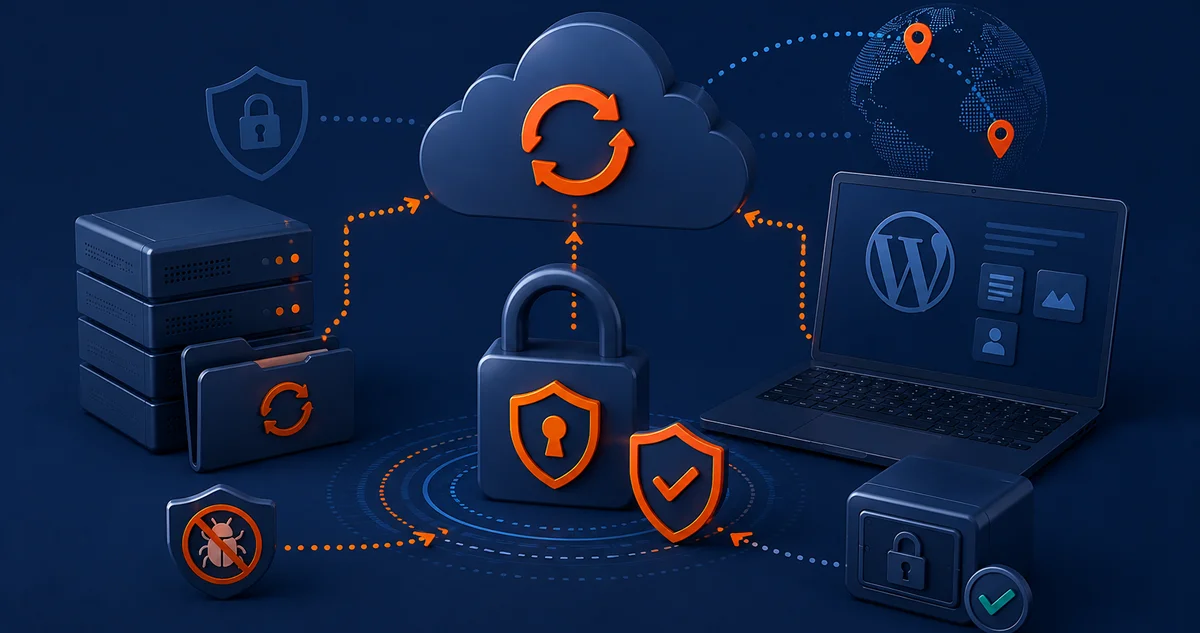
Backing up your website is insufficient if all copies remain on the same server. Off site data backup saves your backups elsewhere. This adds extra safety and keeps your secure data backup plan strong.
A trusted web backup service, like Jetpack or CodeGuard, can do this for you. They work in the background, creating automatic backups every day. These backups are supported with encryption. This means your files are locked, and only you can open them.
Encrypted backups stop hackers from reading your data. They also protect them from ransomware attacks that try to delete your files. These tools are essential for secure data backup and WordPress database backup.
Using backup services with encryption is easy. Select a suitable tool, enable encryption, and let it run. In the next section, we’ll show how to test your backups. Also, you’ll learn to identify problems using simple data integrity tools.
Test Recovery and Verify Data Integrity
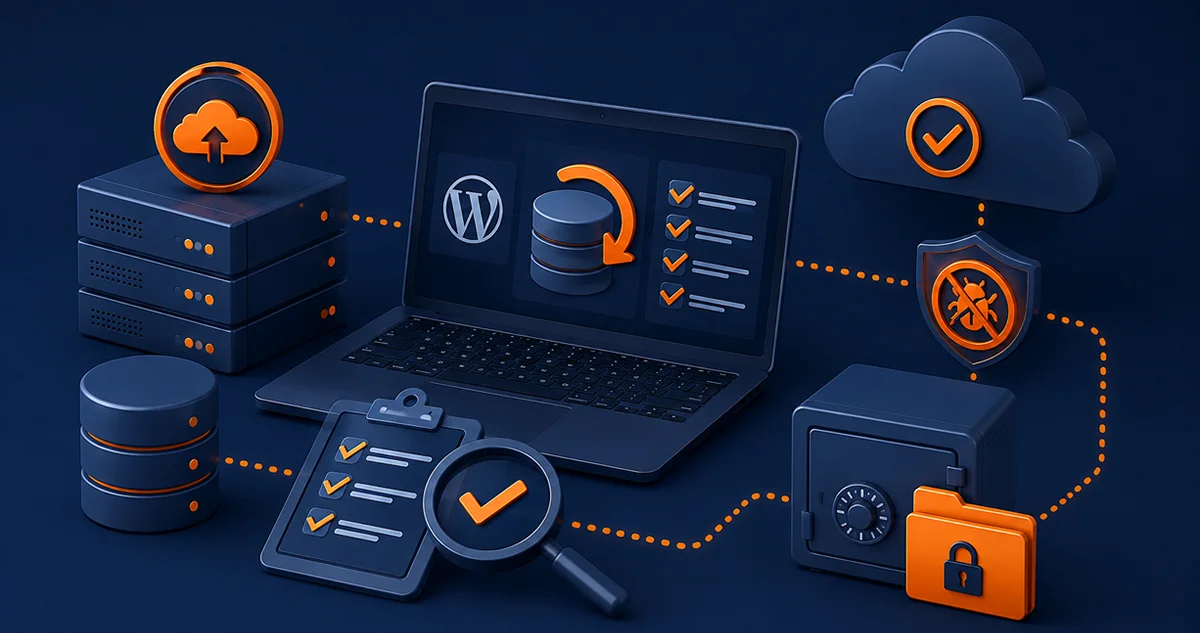
Backups are worthless if they fail when needed. That’s why testing your backup recovery process is key. A backup is only helpful if you can restore your site entirely, fast, and without errors.
You can use tools like MySQL or WP-CLI to test your WordPress site backup. Try a full restore on a test server. If anything breaks, fix it now, not during a crisis. Make this step a regular part of your data backup strategy.
Use integrity tools to ensure a complete and secure data backup. They look for errors, missing files, or damage, so you don’t get surprised later. These checks help you stay confident that your data is backed up correctly.
Also, protect backups from ransomware. Keep a copy off-site. Make the files read-only. Test them regularly to be sure they work correctly. Here’s a quick summary of why backups are essential—and how they keep you ready for any website emergency.
Frequently Asked Questions
What’s the best backup plugin for WordPress sites?
UpdraftPlus and BlogVault are top choices. These plugins ease scheduling backups, storing them off-site, and restoring your entire website safely.
Why use a site backup service instead of manual backups?
It does the work for you. It saves you time, prevents errors, and stores copies away from your primary server. This keeps your backups always up to date.
How does off site data backup increase security?
It stores your files in a different place. Should your main site experience an issue, your data remains safe, intact, and easily retrievable.
Should I use a backup with encryption for my WordPress site?
Yes. It keeps your data hidden from hackers. Even if someone gets access, they can’t read your files. It adds another strong layer of defense to your backup plan.
How do I protect backups from ransomware?
Encrypt your backups, store a copy off-site away from your primary server, and set them as read-only. This way, hackers cannot tamper with or delete them.
What are the most reliable data integrity tools available?
Checksum, AWS S3 validation, and HashiCorp Vault are popular ones. They confirm your backups are safe and ready to use when you need to restore your site.
Conclusion
Every website needs a secure data backup plan. It protects your site from crashes, hacks, and mistakes. Even small websites can lose everything without proper backups. A solid plan makes recovery easy and fast.
Select trusted tools for your WordPress database backup. Set them to run on a schedule, test them regularly, and store copies in a secure location. By doing these, your site will always be ready—even if something goes wrong.
Protect Your Website with Secure Data Backup
The Strategic Tech is ready to set up your secure data backup today. Our expert team protects your website using automated WordPress site backup, encrypted storage, and fast recovery options. Don’t wait until it’s too late—partner with The Strategic Tech to secure your data and keep your site online with confidence.